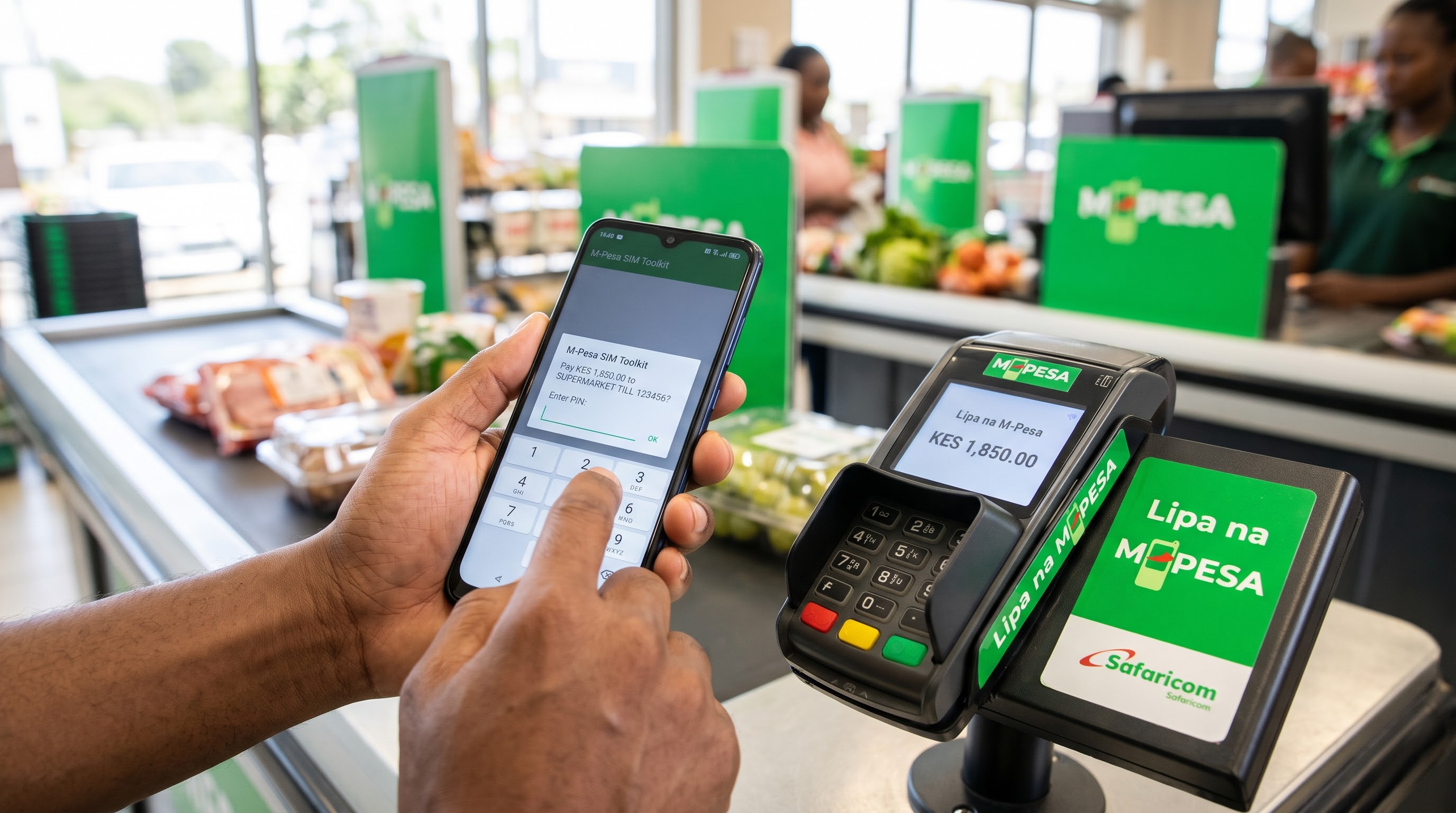
Eliminate Fake M-Pesa SMS Fraud & Automate Cashier Checkout
In Kenya today, over 80% of retail transactions are paid via Safaricom M-Pesa. Yet, the vast majority of small and medium businesses still handle M-Pesa manually: the cashier asks for the customer's phone, strains to read the tiny SMS screen, writes down the 10-character code on a piece of scrap paper, and manually tallies transactions at the end of the day.
This manual workflow leads to two massive problems:
- Fake M-Pesa SMS Scams: Fraudsters use SMS spoofing apps to generate authentic-looking M-Pesa messages for goods they never paid for.
- Cashier Shift Headaches: Closing a shift takes 1 to 2 hours of manual paper-checking, and discrepancy arguments between cashiers and managers are common.
In this guide, we show you how to connect your Safaricom Buy Goods Till or Paybill directly to your POS system to automate checkout completely.
The 3 Ways M-Pesa Connects to a Modern POS
1. M-Pesa STK Push (Customer Prompt)
When the cashier finishes scanning items at checkout, they click "M-Pesa STK". The system automatically sends a secure pop-up prompt directly to the customer's phone displaying: "Do you want to pay KES 1,450 to Apex Supermarket? Enter PIN:"
Once the customer inputs their M-Pesa PIN, the transaction confirms on the cashier's screen in 1 to 2 seconds, prints the receipt with the verified reference number, and opens the cash drawer. Zero manual typing. Zero fraud risk.
2. C2B Paybill & Till Auto-Matching (Claim C2B)
If the customer prefers typing your Till number on their own phone (e.g. Lipa na M-Pesa → Buy Goods → Till 123456), the payment hits Safaricom's servers. Your POS listens in real time. The cashier taps Claim C2B, picks the incoming transaction, and the system reconciles it instantly against the sale invoice.
3. KopoKopo Integration
For businesses utilizing KopoKopo Till numbers, modern POS software connects via KopoKopo APIs to trigger STK prompts and pull real-time merchant settlement logs.
What You Need Before Starting Setup
- Your Safaricom Buy Goods Till Number or Paybill Number.
- A Safaricom Daraja 2.0 Developer Account (developer.safaricom.co.ke).
- Your Daraja API credentials:
Consumer KeyConsumer SecretPasskeyShortcode / Till Number
- An integrated point of sale platform like 254POS with the built-in KenyaPay module.
Step-by-Step Setup Guide in 254POS
Step 1: Open KenyaPay Settings in Your POS Dashboard
Log in to your 254POS admin dashboard. Navigate to Settings → KenyaPay → Gateways → M-Pesa Daraja.
Step 2: Enter Your Daraja API Credentials
Select your environment: choose Production (Live) for real money transactions or Sandbox for testing. Paste your Consumer Key, Consumer Secret, Passkey, and Shortcode.
Step 3: Register Your Webhook Callback URLs
254POS automatically generates your unique Webhook Callback URL (e.g. https://yourdomain.com/kenyapay/webhook/mpesa_daraja). Copy this URL into your Safaricom Daraja portal so Safaricom knows where to send instant transaction confirmations.
Step 4: Enable C2B Drawer & Auto-Reconciliation
Under POS settings, enable "Claim C2B Till Payments". This activates the live C2B drawer on your cashier billing screen, allowing cashiers to view and claim unassigned customer payments in real time.
Step 5: Run a Test Transaction
Ring up a test item of KES 10 on your POS. Select M-Pesa STK, enter your Safaricom mobile number, and tap Complete. Your phone will vibrate with the prompt. Enter PIN, and watch the receipt print automatically with your official M-Pesa reference code!
Top 4 Business Benefits of M-Pesa Automation
- 100% Protection from Fake SMS Scams: Since the POS only completes the sale when confirmed cryptographically by Safaricom's servers, scammers can never fake an SMS again.
- Checkout Times Cut by 80%: Cashiers process customers in 5 seconds instead of 45 seconds, eliminating long store queues.
- Effortless Shift Closes: When the cashier closes their shift, the Z-Report details exact Cash collected vs M-Pesa collected with zero manual math.
- Official Reference Printed on Receipts: Every thermal receipt prints
M-PESA REF: QHX7819KL, keeping auditors and tax authorities satisfied.
Need Help Connecting Your Till?
Our technical integration team can connect your Safaricom Till or KopoKopo to 254POS in under 30 minutes.
Contact Our Support Team →